Laptop Stand for Work From Home in India: What It Can and Cannot Fix

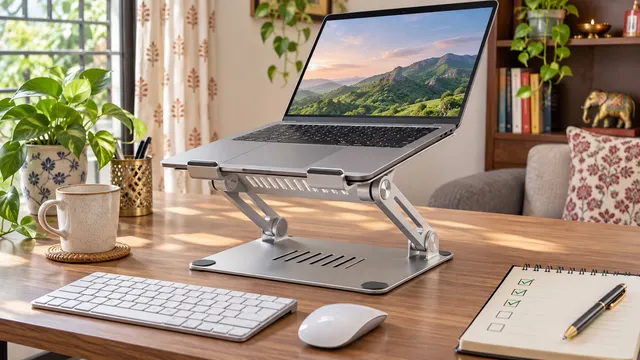
A stand can raise your laptop screen, but it raises the keyboard too. That is why a stand often works best with a separate keyboard and mouse: you can place the screen and your hands independently. This guide covers setup and buying checks; we have not tested specific stands.
Will a laptop stand help with back and neck pain?
Raising the screen may make it easier to look ahead instead of down at the desk. A stand is only one part of the setup: if it puts the keyboard too high, your hands may be uncomfortable. OSHA advises positioning the monitor in front of you and considering it alongside the keyboard, desk and chair (OSHA monitor guidance).
If discomfort continues or worries you, get advice from a qualified health professional. This is general workstation guidance, not a diagnosis or treatment plan.
Fixed, adjustable or portable laptop stand?
| Type | Advantages | Trade-offs | May suit |
|---|---|---|---|
| Fixed riser | Simple, few moving parts | One height; less convenient to store | A permanent desk with a measured setup |
| Adjustable stand | Can change height and angle | Hinges must hold position; more parts to inspect | Shared desks or users who change seating |
| Foldable portable stand | Packs away and travels | Check stability and footprint on each surface | People who work in different rooms |
| Ventilated riser | Open design can leave airflow space | Ventilation does not guarantee lower temperatures | Buyers whose laptop vents are otherwise blocked |
Check that the stand supports the laptop’s dimensions and weight. A stable stand should not rock when you type; with most raised setups, type on an external keyboard instead.
Set up your desk in five minutes
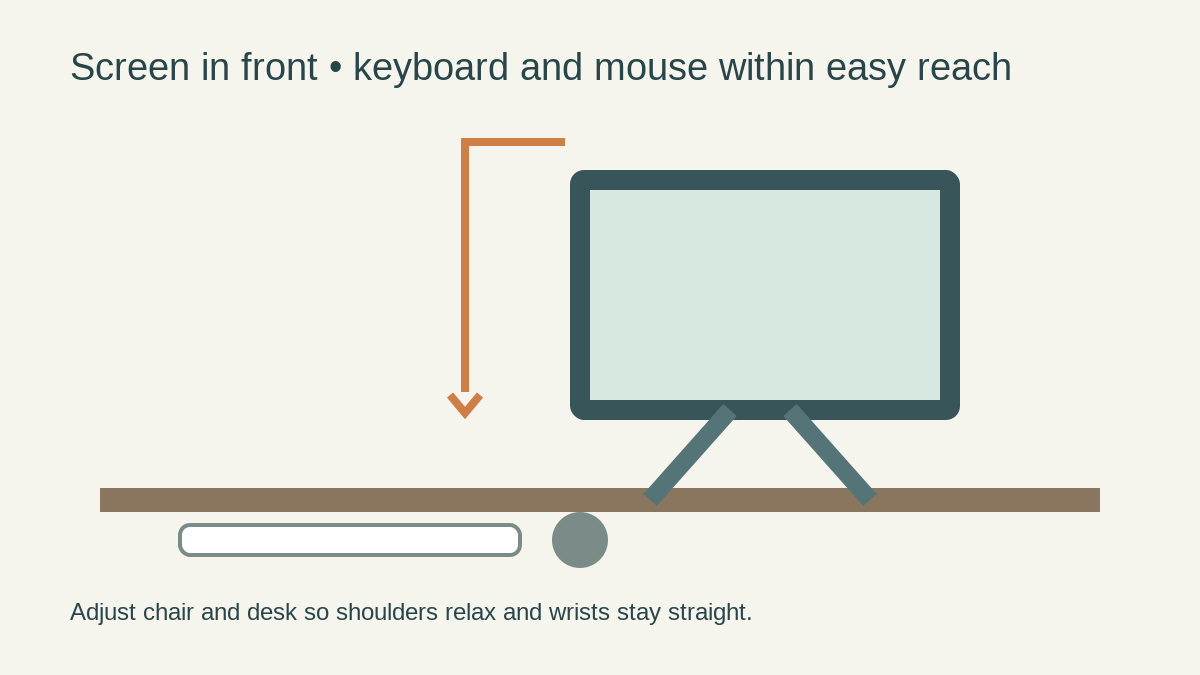
- Put the laptop directly in front of you and raise the display until your head can stay comfortably upright.
- Add a separate keyboard and mouse or pointing device, close enough to avoid reaching. OSHA notes laptop keyboards may make prolonged typing awkward because of their compact layout and the distance between screen and keyboard (OSHA purchasing guide).
- Adjust the chair and desk so shoulders can relax and elbows remain near your sides; keep wrists straight rather than bent.
- Keep feet supported by the floor or a footrest and leave room to change posture.
- Work in short position changes and breaks. OSHA points out prolonged static posture can fatigue neck and shoulder muscles (work process guidance).
Treat these as adjustments to try, not a promise of pain relief. What feels comfortable depends on the person and the task.
What to check before you buy
- Laptop size and weight limit: match the exact model, including any case.
- Height and angle range: confirm it can bring the screen to a useful position on your desk.
- Stability: look for a broad base, non-slip contact points and a secure hinge design.
- Typing arrangement: check whether the raised front edge interferes with a separate keyboard.
- Vent clearance: do not cover the laptop’s intake or exhaust vents.
- Folded size and weight: relevant if you carry it between rooms.
- Returns and warranty: read the seller’s current terms before purchase.
Choose a stand that fits your setup
For a fixed desk, a fixed riser has fewer moving parts; an adjustable or foldable stand is easier to adapt or store. Check the laptop’s dimensions and weight against the listing, confirm hinge stability, and make sure the design does not block the laptop’s vents. No specific Amazon listing has been verified for this guide, so this is a feature checklist rather than a product recommendation.
Make the stand work with a keyboard and mouse
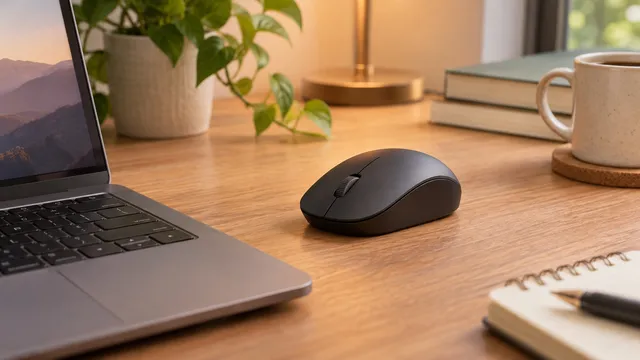
Raising a laptop screen also raises its built-in keyboard. A separate keyboard and mouse let you place the screen and hands independently. Keep both near the front edge and within comfortable reach; the OSHA workstation guide explains that poor placement can encourage awkward postures (pointer and mouse placement). Use a comfortable pointer you already own and keep it within easy reach, as OSHA advises in its pointer and mouse placement guidance. If you still need a pointer, our guide to choosing a wireless mouse under ₹1000 explains USB receiver versus Bluetooth.
Build a break habit
Change position periodically, rest your eyes, and notice whether a particular task or time of day triggers discomfort. The 80/20 productivity guide can help plan focused work blocks, while the study routine guide has ideas for planned pauses. These are habit suggestions, not medical treatments.
When to seek professional advice
Persistent, severe or activity-limiting pain deserves a conversation with a clinician, especially if you also have symptoms such as numbness or weakness. They can assess what is causing it and suggest suitable next steps.
Once the stand is in place, tidy the cables behind your desk so wires don’t pull on the stand or your laptop.
Frequently asked questions
Does a laptop stand really reduce neck pain?
A stand can raise the screen and may make a more neutral viewing position easier. It is not a cure, and the rest of the workstation matters too. Persistent pain should be discussed with a clinician.
What height should a laptop stand be?
Set the display so you can look ahead without repeatedly bending your neck. Your desk, chair, screen size and posture determine the useful height; adjust the keyboard separately.
Do I need a separate keyboard and mouse with a laptop stand?
For extended typing, they make it easier to position the raised display independently from your hands. Keep them close enough to avoid reaching.
Are cheap laptop stands safe for a heavy laptop?
Price alone does not establish safety. Check the stated weight and size limits, stability, materials and return terms, and stop using a stand that wobbles or slips.
Adjustable or fixed stand for work from home?
A fixed stand can suit a measured permanent setup. Adjustable stands help when desk or user positions vary, but inspect hinge stability and range.
Where to go next
Browse Gadgets, use the laptop stand buying checklist, see the full work-from-home desk setup, or plan a more comfortable workday with the 80/20 productivity guide.
More in Gadgets
- Gadgets
Study Table Lamp in India: How to Choose the Right One for Studying or Work
Choosing a study or desk lamp in India? What brightness, colour temperature, arm type and battery backup you need, and how to check a listing.
- Gadgets
Best Laptop Stand in India: What to Check Before You Buy
Choosing a laptop stand in India: fixed, foldable or adjustable, size and weight limits, airflow, and how to check an Amazon.in listing before you order.
- Gadgets
Best Silent Wireless Mouse in India: Is a Quiet-Click Mouse Worth It?
Quiet-click wireless mice explained for India: what 'silent' really means, who benefits, what the Logitech M221 claims, and how to check an Amazon.in listing.